Resonance Trading Simulator: practice trading without risking your deposit
Backtesting strategies often suffers from subjectivity, and on a real account, it’s expensive. The new Resonance trading simulator solves this problem by immersing you in “combat conditions” on random assets and timeframes. In this article, we’ll explore the simulator’s interface, a step-by-step launch algorithm, risk management rules, and how to conduct in-depth post-trade volume analysis without risking a single cent of your real account.
Table of contents

Resonance has introduced a new tool — the trading simulator. It helps you practice on real market data without risking your deposit.
The simulator randomly selects an asset and a timeframe, hides future bars, and lets you go through a market situation as if it were unfolding in real time. You do not know where the price will move next, so decisions have to be made in the moment: analyzing the cluster chart, limit orders, abnormal volume accumulations, opening and closing Long or Short trades, managing risk and position size.
After the trade is completed, you can review the result: whether the entry was justified, where the risk became too high, whether the exit was timely, and how the market behaved after the position was closed.
Introduction: why traders need a simulator
One of the biggest challenges in learning to trade is the high cost of mistakes. On a real account, every wrong decision costs money, while simply reviewing historical charts often distorts perception: when we already know where the price went, entries look more obvious than they really were in the moment.
The Resonance trading simulator helps reduce this bias. You work with a random market segment, do not see future bars, and analyze the situation only based on the data that was available at that moment.
This is not just looking back at historical charts, but a full training environment: you make a decision, open a trade, manage the position, and immediately see the result. This format helps you train discipline, test trading hypotheses, and collect statistics on your decisions without risking a real deposit.
How to launch the simulator
The new tool is available directly from the right-side menu on the platform’s cluster chart page. To start a training session, you do not need to connect an exchange or use real funds.
The launch process is very simple and takes three steps:
- Select Simulator in the menu.
- Select Random Simulator mode.
- Click Start.
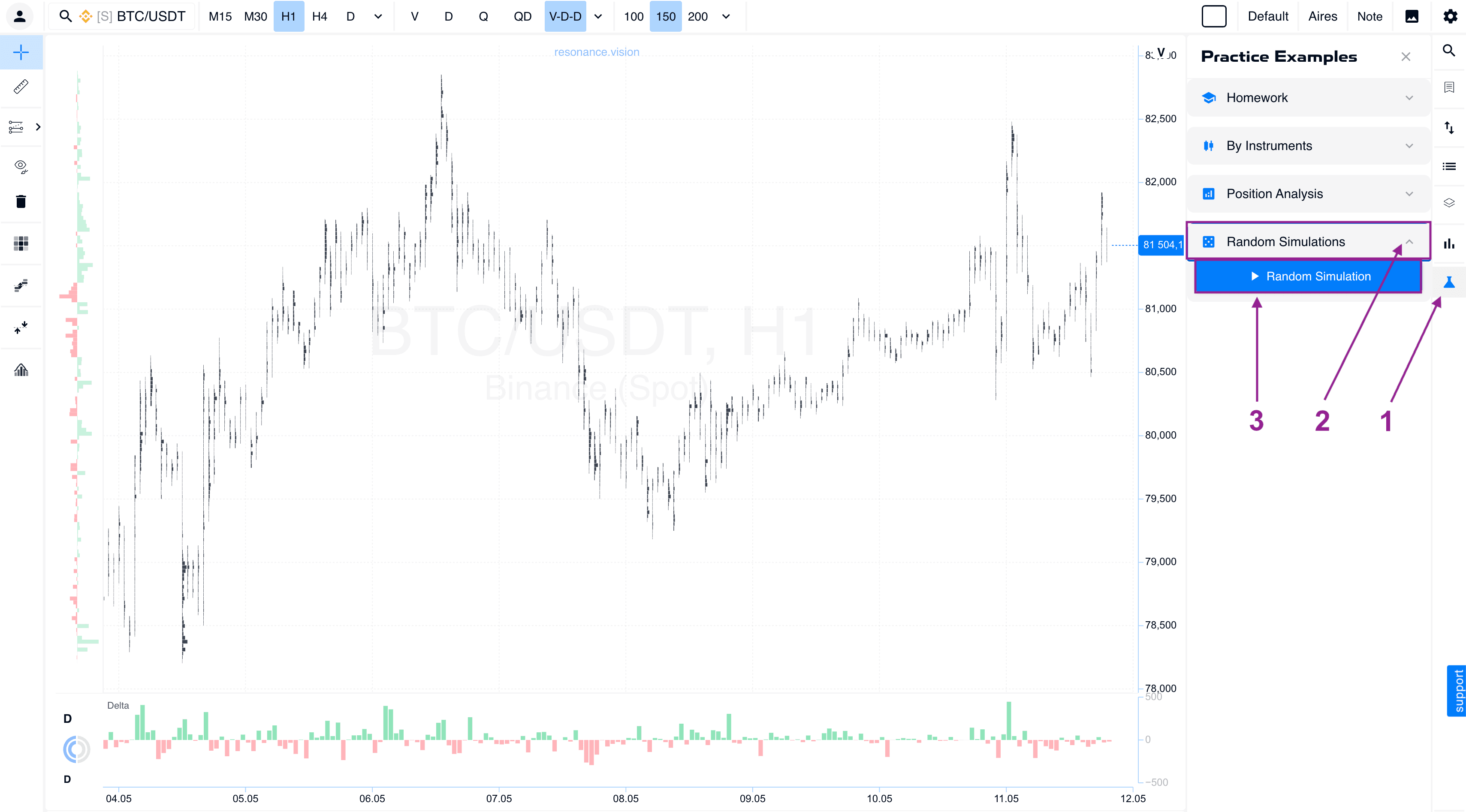
After launch, a random trading session opens with a demo deposit and a trade management panel.
Control interface: full control over the session
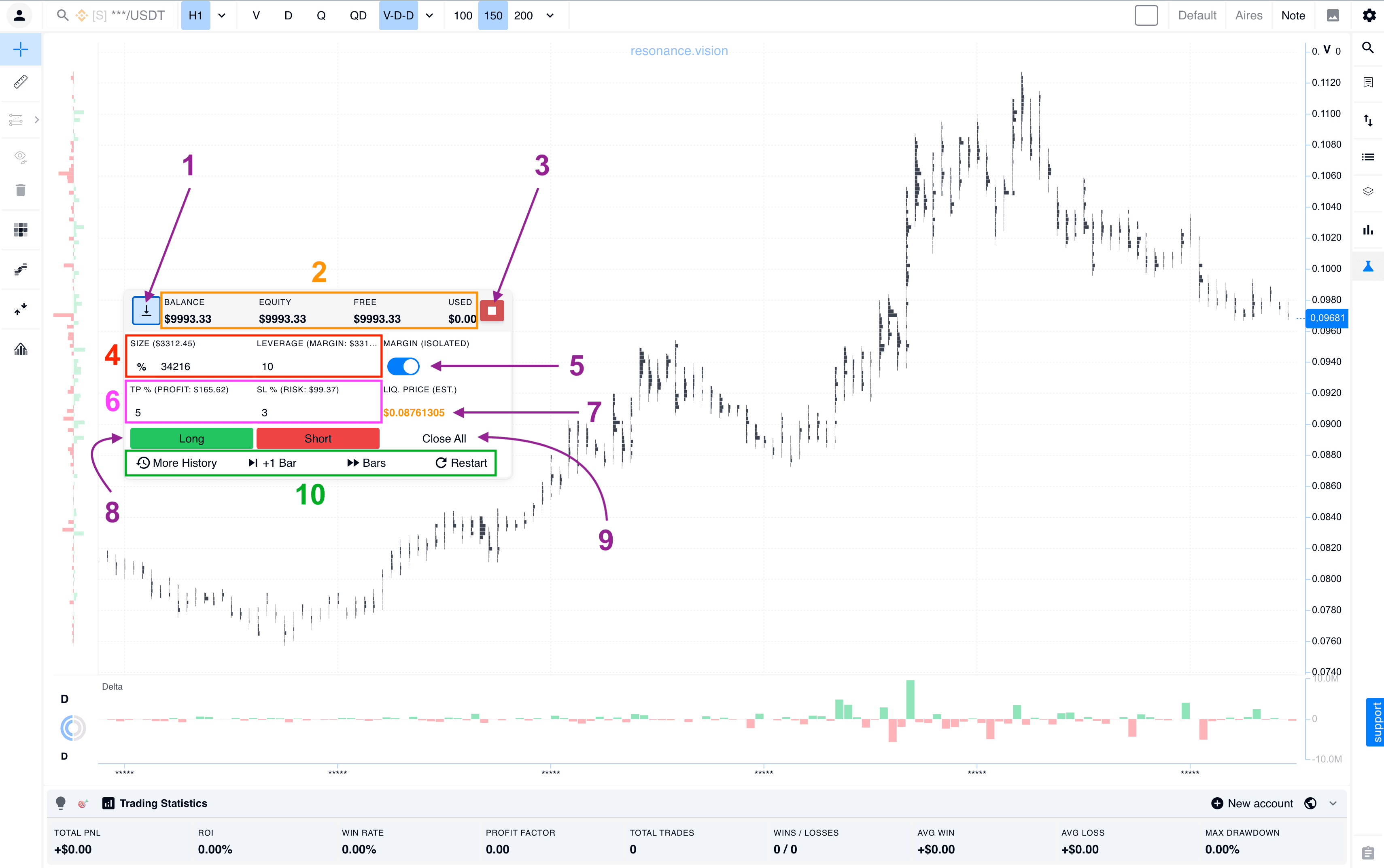
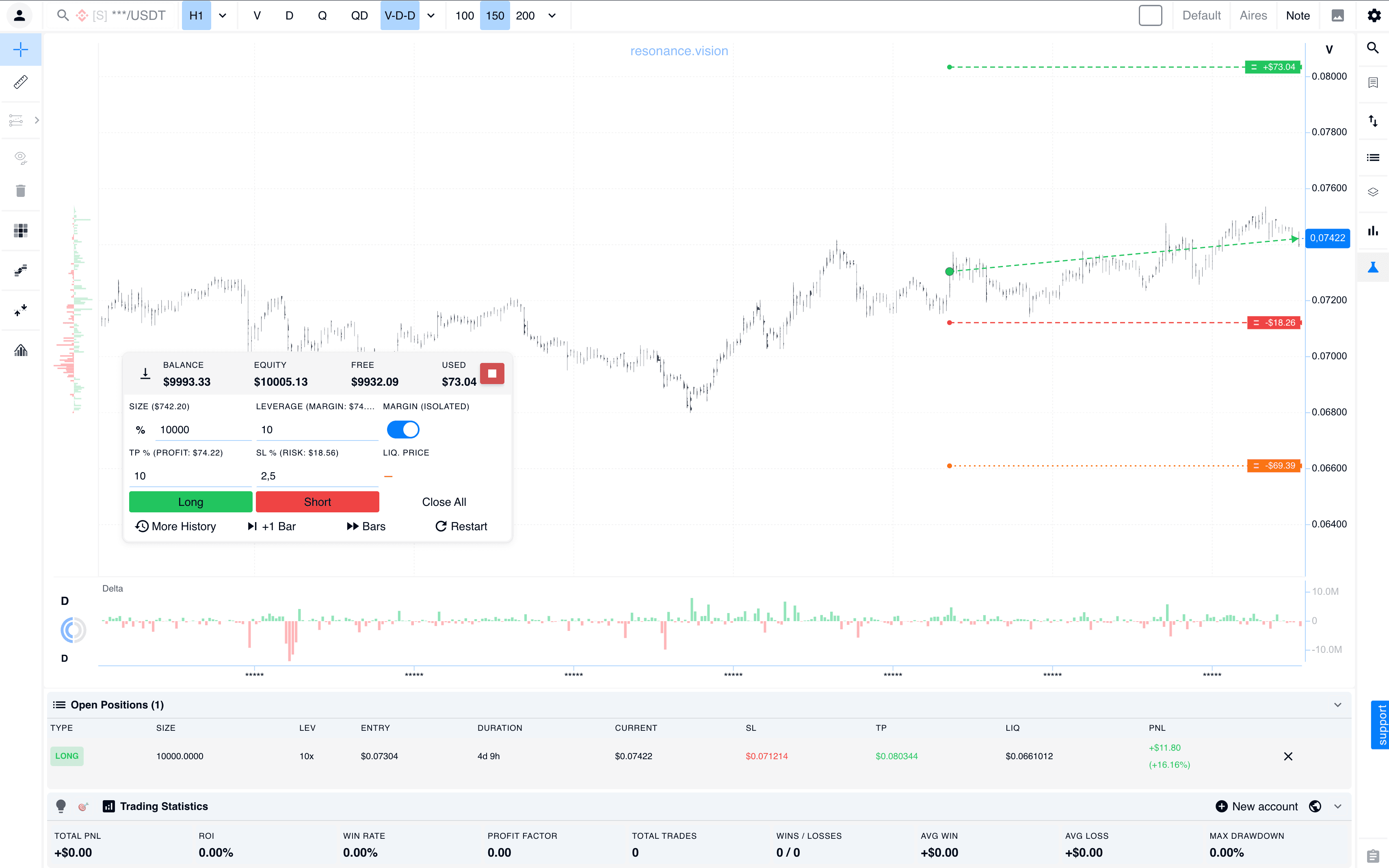
After launch, the control panel opens. For convenience, it can be pinned to the bottom of the screen (button #1).
Main sections of the panel:
- Account management: information about your demo deposit (#2) and the button to stop the session (#3).
- Trading settings: here you enter the trade amount, select leverage (#4), and choose the margin mode — cross or isolated (#5).
- Risk management: setting Take Profit and Stop Loss (#6), as well as the liquidation price window (#7).
- Trade execution: buttons for opening Long/Short trades (#8) and a button for closing all positions in one click (#9).
- History navigation: at the bottom (#10), there are buttons for moving through bars, either one by one or in groups, and a Restart button for instantly switching to a new asset.
Visualizing positions on the chart
When a position is open, the simulator clearly displays its status directly on the cluster chart using dashed lines and colored indicators:
- Green line with an arrow: your entry marker, which moves along with the price.
- Orange line: the liquidation level — the critical risk zone.
- Red dot: your set Stop Loss.
- Small green dot: your Take Profit.
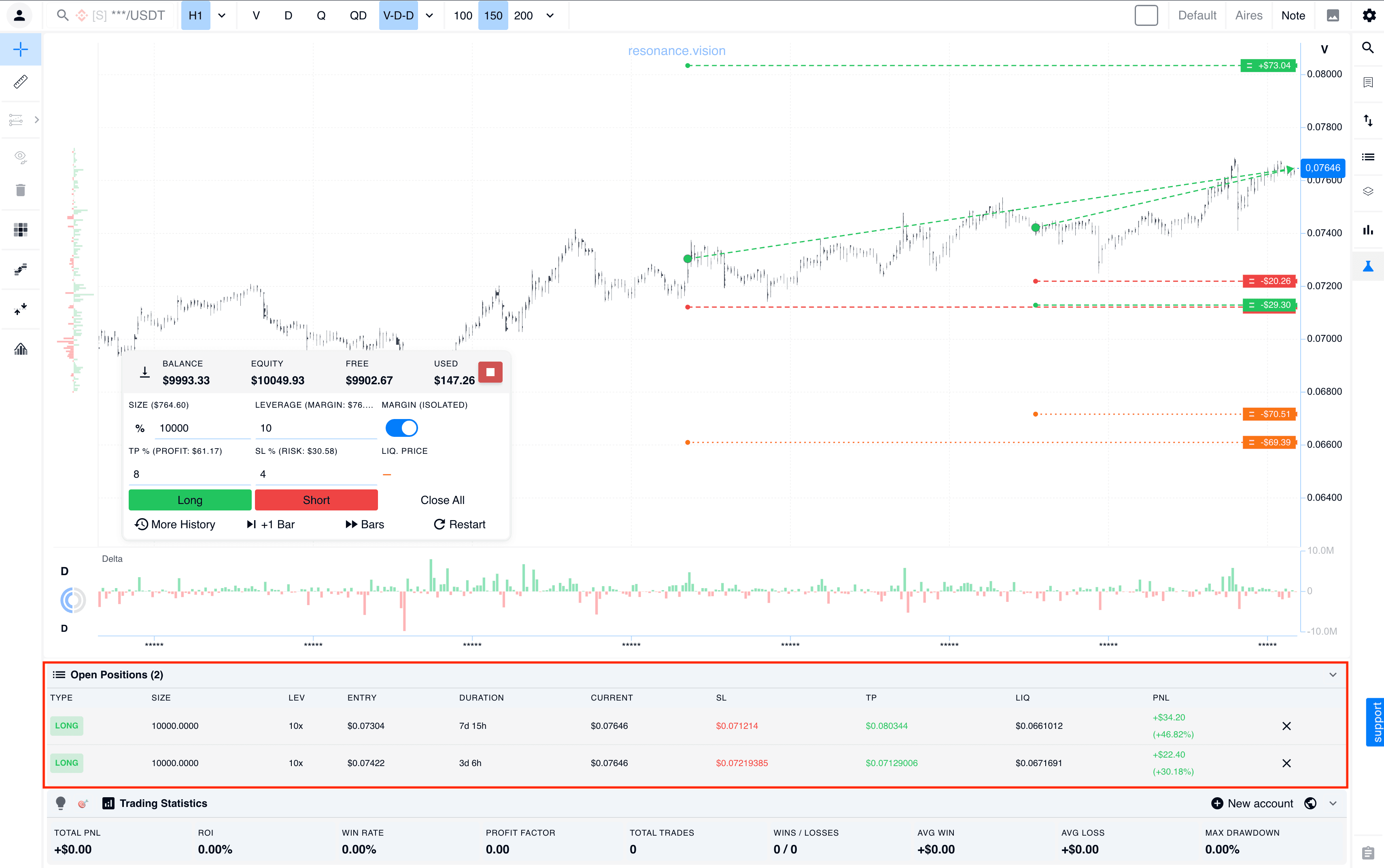
The system supports pyramiding: you can add to a position, and each new trade will be displayed in the same way. A general summary of all active orders is always available at the bottom of the screen (red rectangle).
Managing active trades
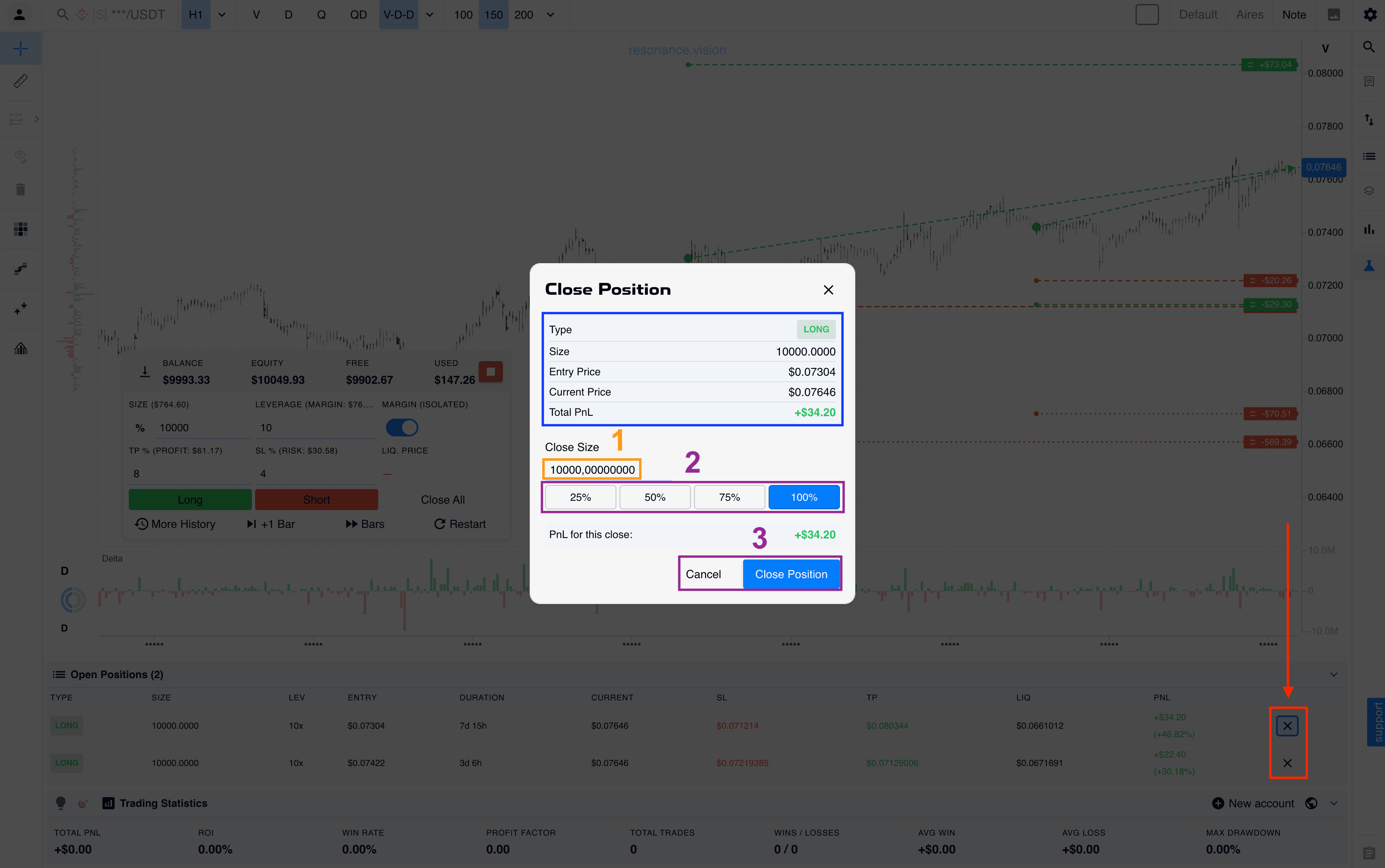
If you need to close part of a position or change its parameters, click the X icon in the position row, marked with a red arrow and rectangle. A management window will appear:
- Ability to close a specific amount.
- Percentage-based closing: 25%, 50%, 75%, 100%.
- Quickly close the entire position or cancellation of the operation.
After the trade is closed, a highlighted zone remains on the chart, visually showing your result — profit or loss.
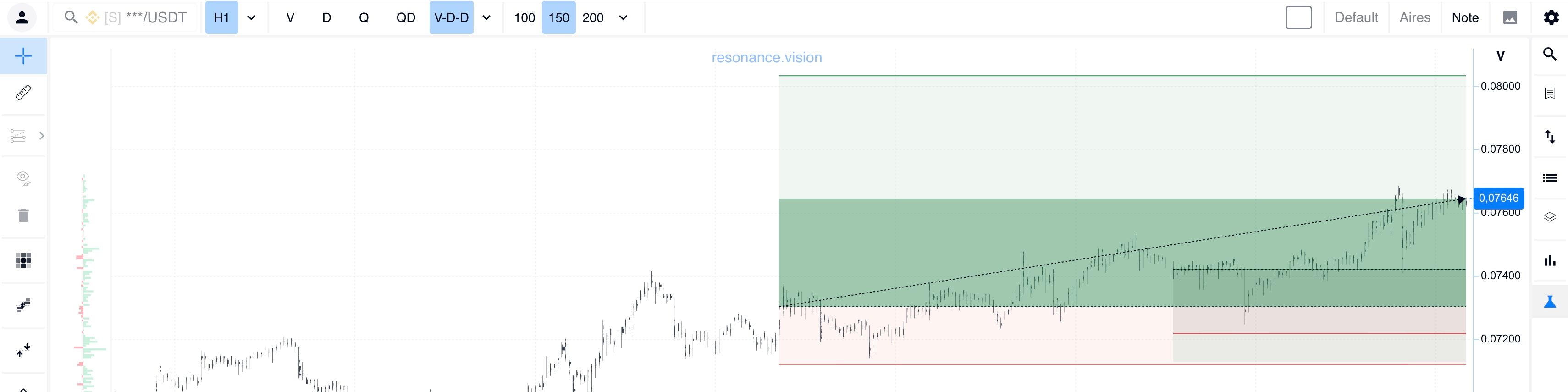
Statistics and mistake analysis
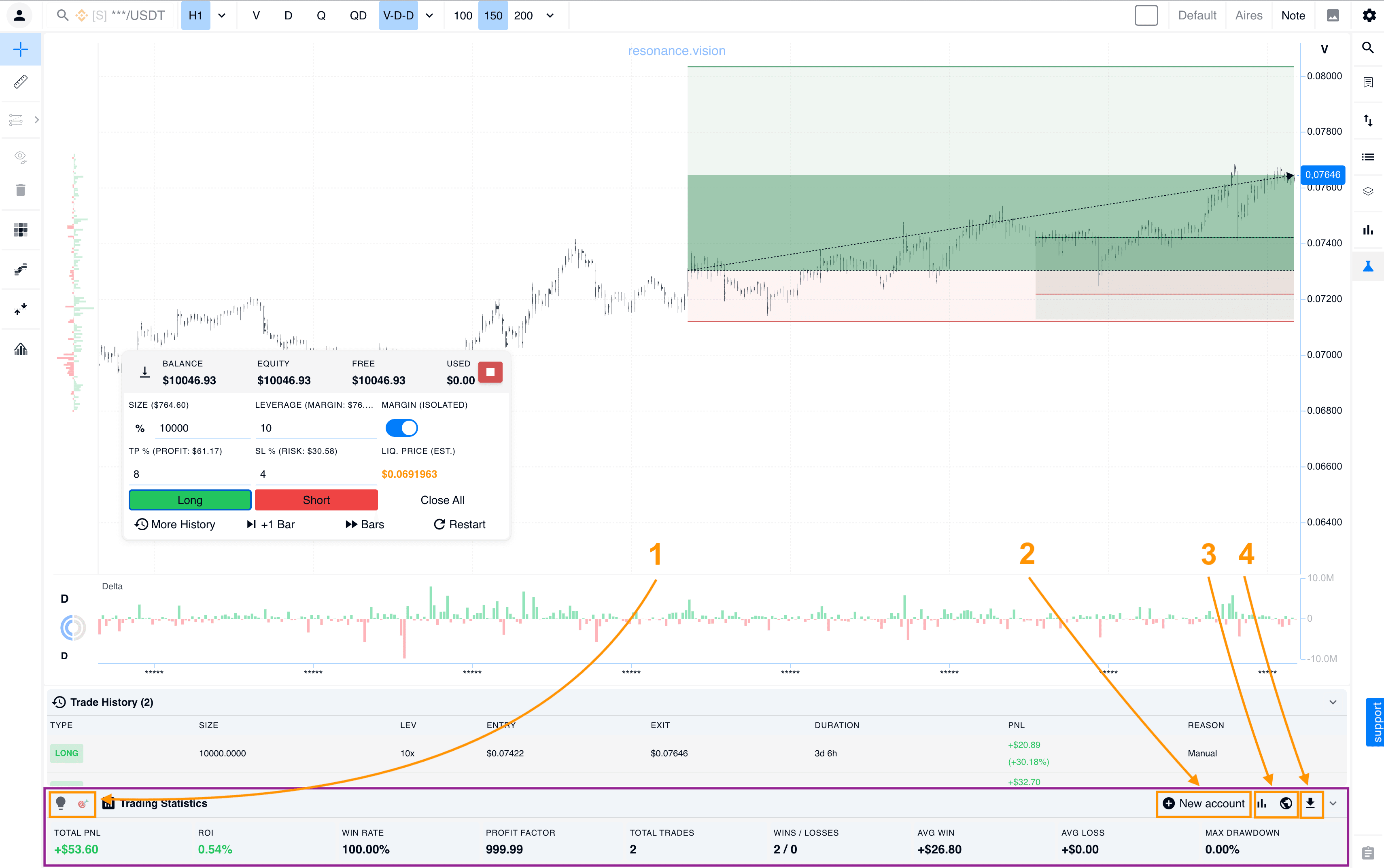
After a trade, it is important not only to see profit or loss, but also to analyze the quality of the decision. For this purpose, additional functions are available in the lower simulator block:
Tips: #1 — a panel that helps beginners quickly get oriented.
Account reset: #2 — if you lose more than 50% of the deposit, , the Open a new account button becomes active.
Analytics: #3 — detailed statistics of your account for the entire simulation history.
Export: #4 — the ability to download trading session results for keeping a personal trading journal.
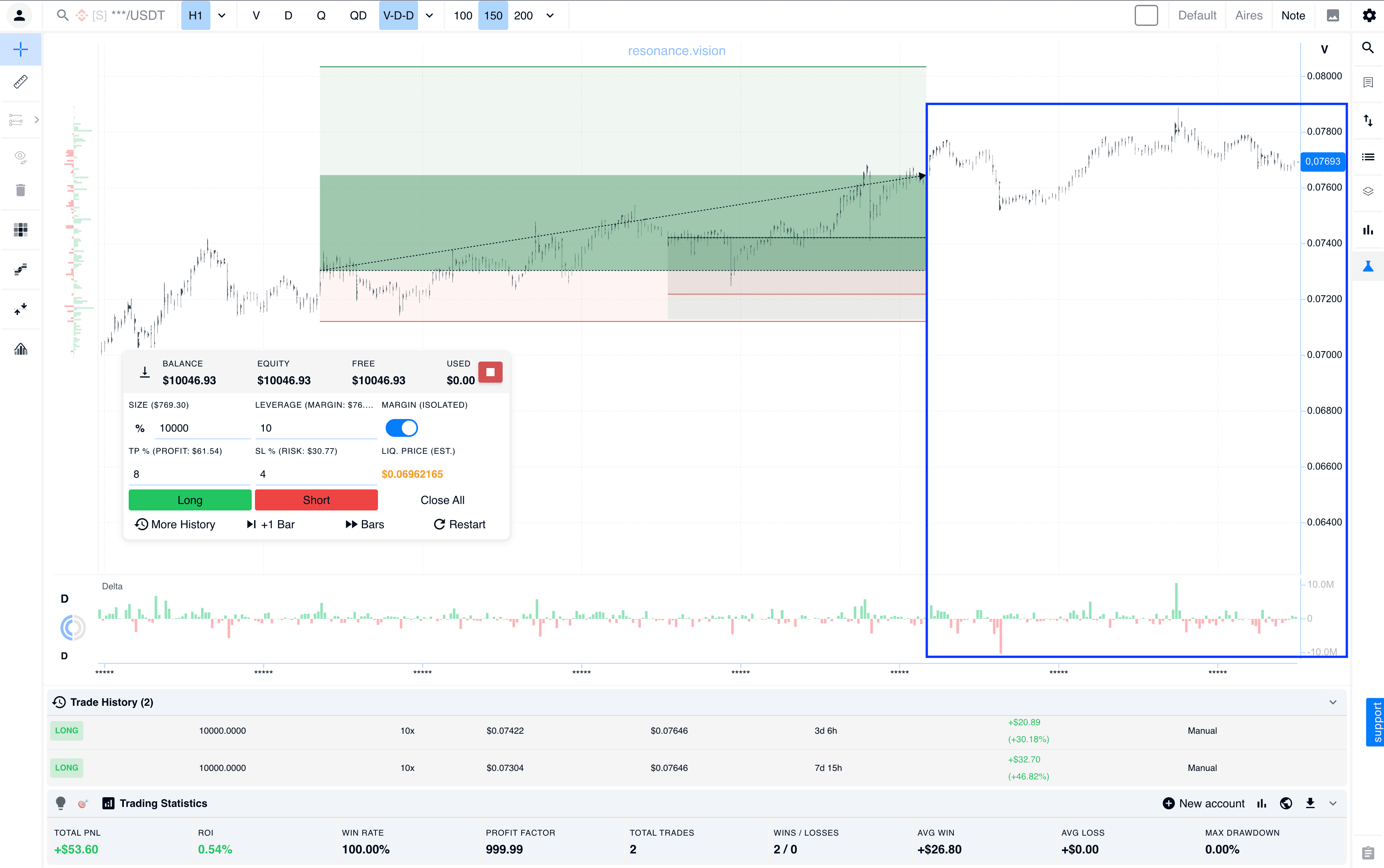
Important feature: after all trades are closed, the simulator allows you to scroll the history further (blue rectangle). This is needed to understand whether you exited the market correctly or whether the move continued without you. This kind of post-analysis is one of the best ways to improve your strategy.
Conclusion: from simulation to real trading
The Resonance trading simulator is a new tool for practice inside the platform. It allows you to go through random market situations, open and manage trades, control risk, and analyze the result without risking a real deposit.
Use the simulator to train trading decisions over a series of sessions and better understand how your strategy works in different market conditions. When your strategy starts showing consistent positive results in the simulator, moving to a real account becomes a more informed next step.
Follow new insights in our telegram channel.
No need to invent complex schemes and look for the "grail". Use the Resonance platform tools.
Register via the link — get a bonus and start earning:
OKX | BingX | KuCoin.
Promo code TOPBLOG gives you a 10% discount on any Resonance tariff plan.
Recommended articles